Customer Guides (Public)
- Website running slow? How to get it running quickly
- Why aren't my changes showing for my website visitors?
- Guidelines for structuring a website update request
Website running slow? How to get it running quickly
If your WordPress website is feeling sluggish, don’t worry—there are a few simple steps you can take to improve performance without diving into technical settings.
Is caching enabled on your website?
If you are a Globe2 customer - the answer is yes. During your onboarding, we would have provided you with our free optimisation service during your onboarding.
If you are not already a Globe2 customer... In our experience, about 60% of websites we assess aren't fully benefiting from caching. Keep reading for a quick and helpful explanation of how caching works—and why it matters. Thinking of switching? Try us risk-free with our 6-month free guarantee if we’re unable to improve your website’s speed (which is unlikely).
Understanding How Caching Works
Caching speeds up your website by saving static versions of your pages and delivering them instantly to visitors, instead of rebuilding each page from scratch on every visit.
However, cache doesn’t last forever. It can expire over time or be cleared automatically when:
-
You edit or update a page or post
-
You install or update a plugin or theme
-
You make structural changes to your website or settings
Why your website is running slow:
It is likely that your page(s) are not cached and because of this the first visitor to the affected page will trigger WordPress to rebuild it and store a new cached version. This initial load will be slower, as it takes time to dynamically generate and store the cached page. After that, subsequent visitors will benefit from the faster, cached version.
How to Make Sure Your Site Runs Fast By Caching Pages:
Caching pages is as simple as visiting those pages when not logged in.
-
Log Out of WordPress
To see your site as a visitor would (and to allow the cache to build), log out of your WordPress admin account. -
Visit Key Pages
Browse your most important pages (like the homepage, contact page, or high-traffic blog posts). This helps LiteSpeed cache them for future visitors. -
Use different devices (i.e mobile and desktop)
Be sure to visit your pages on both mobile and desktop devices to ensure they load quick for both types of devices.
Our recommendation:
- After publishing or saving a page, be sure to visit that page on a desktop and mobile when not logged in to cache that page ahead of any future visits.
- If you are making structural changes (i.e menu or category changes), this purges all cache and so we recommend you visit your key pages on both desktop on mobile.
How to test your page speed:
You can use a free tool such as: https://pagespeed.web.dev/ to test your websites performance. We always recommend you run 2 tests so you can be sure the page is cached.
Need an expert to take a look?
If you would like an in depth review of your website, get in touch and one of our friendly team will take a look at your website and let you know what we can do to improve your website's performance.
Why aren't my changes showing for my website visitors?
You’ve made changes to your website—updated content, changed images, modified styles—but your visitors (or even you) still see the old version. What’s going on?
Quick answer: This is almost always due to caching. Caching stores versions of your website to serve them faster to visitors. While this improves performance, it can occasionally cause updated content to be delayed from appearing.
How to verify this is a caching issue:
By default all our websites use LiteSpeed Cache, to verify this is a caching issue simply append the URL you are visiting with ?LSCWP_CTRL=NOCACHE to see an uncached version of the page. If the page shows your changes, you have verified this is a caching issue.
Example: example.com/contact/ -> example.com/contact/?LSCWP_CTRL=NOCACHE
Should this not resolve the issue, please contact us via support@globe2.net and we will be happy to assist further.
How to resolve the issue:
Once you have identified that this is a caching issue, we can then proceed with clearing the cache.
To clear the cache, please follow the below steps:
When you clear the cache, you are deleting the static copies of your site’s pages. This means the first visitor to each page will experience a slightly slower load time, as the site rebuilds and stores a fresh cached version.
- When logged in to WordPress, visit one of the affected pages.
- Next, hover over the LiteSpeed icon (see image below) to see the purge options.
- If your change effects a single (or limited number of pages), simple click the 'Purge this Page - LSCache' option
- If your change affects many pages, click the 'Purge All - LSCache' option.
- Visit your pages when not logged in or in a private/incognito window to test your changes are visible.

Guidelines for structuring a website update request
What happens when we are contacted?
- When we receive an email to support@globe2.net, this generates a support ticket, which is assigned to one of the team to carry out. Confirmation of the ticket reference is sent out by email, and any updates to the ticket are also sent out by email.
- If a subsequent 'new' email is received, it creates a separate support ticket, which may then be assigned to a different member of the team.
Things which can help ensure tickets are carried out efficiently and without delay:
- To update a ticket, please DO reply to the ticket notification and DON'T send in a new email separately - sending a new email creates a new ticket, which can lead to confusion and delays.
- multiple small requests are better than saving everything into one big job - for example one email for each page that needs updating
- either email us, or ask your tech support to email us - don't do both (even if it is CCing your tech support). This can lead to multiple requests for the same thing.
- a descriptive email subject makes it easier to identify one ticket from another, otherwise we have 10 tickets all named ‘[company name]’ which makes it harder to prioritise workloads.
- try and provide as much information as possible. 'Please add these photos to the [x] section on [this page]' is better than 'Please add these photos to the website'. The more ambiguous the request, the more likely to require additional information and cause a delay.
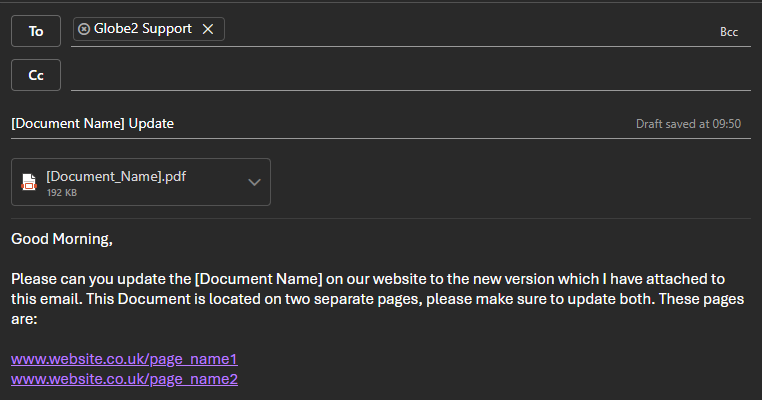
See this example request below: