**Please only perform these actions if instructed by Globe2.**
**1. Connect to your router: ** Before you begin, you must first connect your device to the router by cable or by using the wifi. **2. Login to your router: ** Once connected to the router, please visit the following URL: [http://192.168.1.1](http://192.168.1.1) The page will show a login form requesting a username or password. This will be provided by Globe2 team separately. **3. Navigate to the configuration page:** Once logged in, from the left hand menu, select WAN -> Internet Access. Next, click the Details Page button on the same row as WAN1. [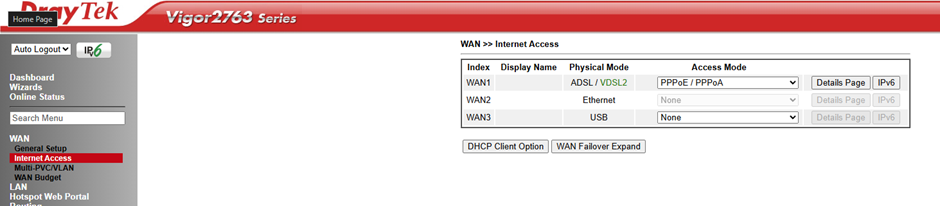](https://docs.globe2.net/uploads/images/gallery/2025-10/image.png) **4. Update the configuration:** Once the page loads, it will look similar to the below. Next, please locate the Username and Password fields located under ISP Access Set-up. Please update these values with the ones provided by Globe2. Once done, please press the OK button to save your changes and you will then be prompted to reboot the router. Please press yes / OK to this. [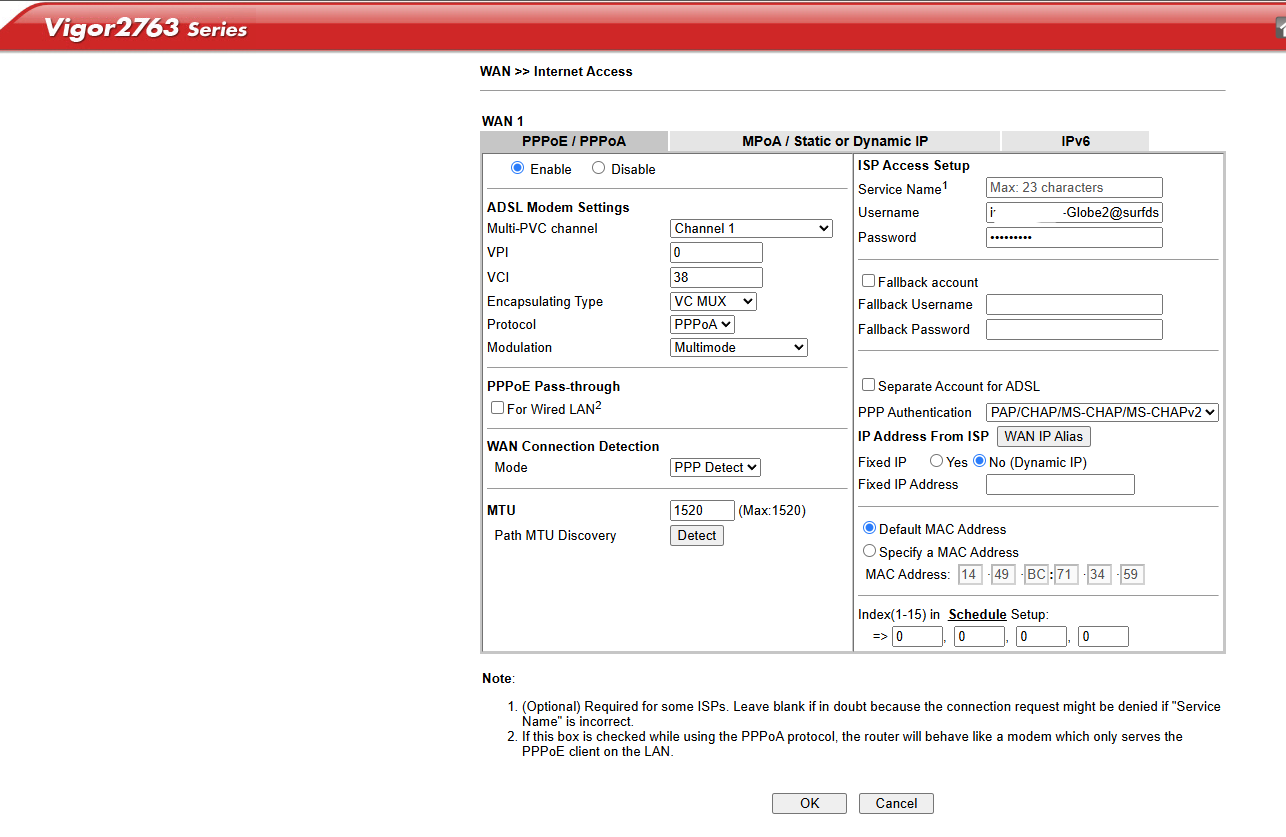](https://docs.globe2.net/uploads/images/gallery/2025-10/dIVimage.png)