# Customer Guides (Public)
# How To Sync Your Heimdal Agent
To get the latest updates to your Heimdal application and assigned policy.
### Instructions:
1. **Locate the Tray Icon:**
Look for the **Heimdal Agent** [](https://docs.globe2.net/uploads/images/gallery/2025-02/image.png) icon in the **system tray** (typically found in the bottom-right corner of the screen near the clock). You may need to click the **upward arrow (^)** to reveal hidden icons.
2. **Right-Click the Heimdal Icon:**
Once you find the Heimdal icon, **right-click** on it to open the context menu.
3. **Select "Sync Policy":**
In the menu, locate and click **"Sync Policy"** to update the policies.
4. **Confirmation:**
Wait a few moments as the agent synchronises with the latest policy settings.
# How to find out what RAM you have installed on Windows 11
If you're thinking about upgrading the RAM in your Windows 11 PC you'll need to know the following information about what is currently installed.
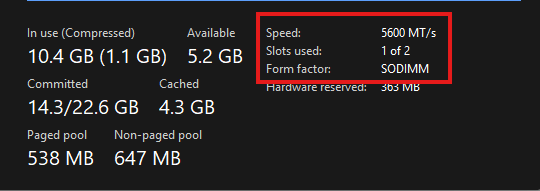
1. DDR number (DDR3, DDR4 or DDR5)
2. Speed (listed in MHz or MT/s - to convert MT/s to MHz divide by 2)
3. Slots used (To determine if you can add additional RAM sticks or have to replace)
4. Form factor (DIMM or SODIMM)
How to find this information
1. Open Task Manager by pressing CTRL+SHIFT+ESC
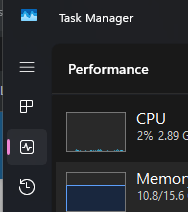
2. Select the performance tab on the left hand side (graph icon third from the top)
[](https://docs.globe2.net/uploads/images/gallery/2025-11/aWlimage.png)
3. Select Memory and look at the data at the bottom, you can find most of this information here (see photo, highlighted by red box)
[](https://docs.globe2.net/uploads/images/gallery/2025-11/O9rimage.png)
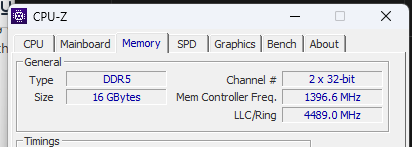
4. Sometimes the DDR number will not be displayed here. In order to locate it you'll need to install a third party tool such as **[CPU-Z](https://download.cpuid.com/cpu-z/cpu-z_2.17-en.zip)**
5. In CPU-Z locate the Memory tab and look for the DDR number under the General section (see screenshot below)
[](https://docs.globe2.net/uploads/images/gallery/2025-11/FeAimage.png)
With this information you (or we) know what to look for when searching for RAM to buy. If you have a free slot, you'll need to match the speed and size of the RAM stick that you install to the one that is already installed. If you don't have any slots free, you'll need to buy two sticks to replace the existing ones.
# How to enroll your device for security updates if unable to upgrade to Windows 11
This guide will show you how to enrol your PC to receive windows security updates, this is good up until Oct 2026.
1. Click the windows icon in your task bar at the bottom
2. Go to settings -> Update & Security -> Windows update
If your device meets the prerequisites, you’ll see a link to enrol
3. Select 'Enrol now'
4. It will prompt you to enter an email and password
Please note that you cannot use a work email i.e. 'name@yourbusiness.net' you must use an outlook email.
If you do not have one there is a link on that same page that will take you through the steps of creating an outlook email.
From here it will begin updating and receiving security updates.