
How to find out what RAM you have installed on Windows 11
If you're thinking about upgrading the RAM in your Windows 11 PC you'll need to know the following information about what is currently installed.
- DDR number (DDR3, DDR4 or DDR5)
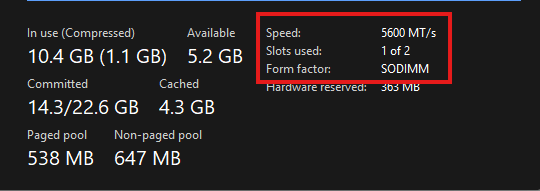
- Speed (listed in MHz or MT/s - to convert MT/s to MHz divide by 2)
- Slots used (To determine if you can add additional RAM sticks or have to replace)
- Form factor (DIMM or SODIMM)
How to find this information
- Open Task Manager by pressing CTRL+SHIFT+ESC
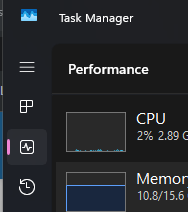
- Select the performance tab on the left hand side (graph icon third from the top)
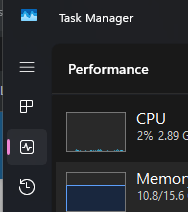
- Select Memory and look at the data at the bottom, you can find most of this information here (see photo, highlighted by red box)
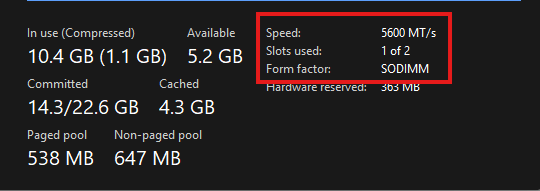
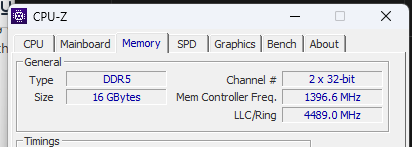
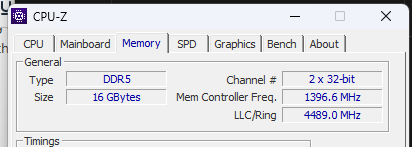
- Sometimes the DDR number will not be displayed here. In order to locate it you'll need to install a third party tool such as CPU-Z
- In CPU-Z locate the Memory tab and look for the DDR number under the General section (see screenshot below)
With this information you (or we) know what to look for when searching for RAM to buy. If you have a free slot, you'll need to match the speed and size of the RAM stick that you install to the one that is already installed. If you don't have any slots free, you'll need to buy two sticks to replace the existing ones.
No comments to display
No comments to display